How to Make a Digital Business Card for Free, Step by Step
You can make a free digital business card in a few minutes: sign up, confirm your email, fill in your details, save, then share the QR code or the link. Here is the whole flow in Digital QR Card, including the spots where people get stuck.
What the Free plan gives you
The Free plan lets you keep 2 digital cards, share them as many times as you like, and lets anyone who opens a card save your contact with one tap. People you share with don't need an app. The card opens in their phone's browser.
There are limits, and it's better to know them before you start. Cards on the Free plan can show a small ad slot, which paid plans remove. Analytics on Free show today only, and longer date ranges are paid. A custom web address for your card (a readable name instead of a long code) is paid only. Lead capture, the Contacts dashboard and CSV export are paid features too. The pricing page lists what each plan includes today, and it's the page to trust if anything here ever looks out of date.
Step 1: Sign up
Go to the free sign-up page. You enter your full name, an email address and a password, answer a short sum (it's there to keep bots out), and tick the box for the Terms of Service and Privacy Policy. If you'd rather not make a password, there's a Google sign-in button on the same page. No credit card is asked for.
Step 2: Confirm your email
The card form won't save until your email address is confirmed, so open the message we send you and click the link in it. Check your spam folder if it doesn't show up. If you lose the message, the card form has a button that sends a new confirmation link. Open it, come back and save again.
Step 3: Fill in the card
After you sign up, you land on the new card form. Three fields are marked as required: your name, your email and a cell number. Everything else is optional, and a field you leave empty simply doesn't appear.
Here's what the form offers:
- Who you are: name, title and organization.
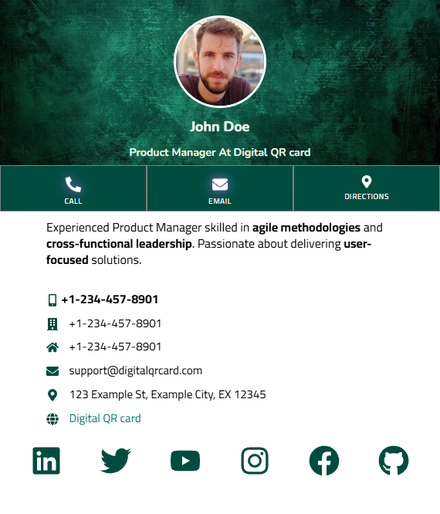
- How to reach you: cell, work, home and fax numbers, an email address and a street address. The card has Call, Email and Directions buttons for visitors.
- Where to send people: a web address, plus the text to show for it, so a long link can read "My portfolio" instead.
- A short summary: what you do and who you do it for.
- Pictures: a profile photo and a background image.
- Social and booking links: pick a platform from a list (LinkedIn, Instagram, Facebook, YouTube, TikTok, WhatsApp, GitHub, Behance, Calendly, Google Calendar and others) and paste your link.
- Look and language: a theme, one of four layouts (Classic, Modern, Glass and Mono), the language the card is written in, and left-to-right or right-to-left text.
If you're unsure what to write in each box, the card creation guide covers wording and design in more detail. A good rule for a first draft: finish the required fields, add a photo, write two sentences for the summary, and save. You can improve it afterwards, and nobody has to see a half-finished version because you decide when to share.
Step 4: Check the live card
Saving takes you to My Cards, where each card shows its web address with a button to copy it, a live preview that opens in a new tab, and edit, duplicate and delete buttons. Open the preview on your phone before you tell anyone about it. Look at the photo, tap your own phone number, tap the email button. If something looks wrong, edit it and save again. The change is live straight away.
Step 5: Share it
You have three ways to put the card in front of someone:
- Show the QR code. The person points their phone camera at it and the card opens.
- Send the link. Copy the address from My Cards and paste it into a text, an email signature or a social profile.
- Print the code. My Cards has a "Download QR for print" button with three formats: a PNG with a white background, a PNG with a transparent background, and an SVG that stays sharp at any size. Scans from a printed code still count in your analytics.
On the other end, the visitor sees your details and a Download vCard button. One tap puts you in their contacts. They can also add the card to their home screen, where it sits next to their apps. If you use Android, your own card page can also be saved to Google Wallet.
Step 6: Change it whenever you like
Edit your title, your number or your link and the card updates for everyone who opens it from then on, using the same QR code and the same link. Nothing has to be reprinted.
One detail to know: if someone already saved your contact to their phone, that saved entry is a copy. It won't change when you edit the card. The card page is always current, and the saved contact is a snapshot of the day they took it.
When free is enough, and when it isn't
Free is enough if you want one or two cards, you hand your details out one person at a time, and you don't need to collect other people's details. It's a fair way to find out whether a digital card suits the way you work, with nothing to cancel.
You'll want a paid plan if you want to collect names and emails from people who scan, see them in a contacts list, export them, or keep up to 3 cards. Pro Lifetime is one payment of $45 with no subscription, and the free versus trial comparison explains how that stacks up against other tools. There's no reason to decide today. Make the free card first and see how it feels in use.
Make your free card and have it live before your next conversation.