What to Put on a QR Code Business Card (and What to Leave Off)
Put your name, role, one phone, one email, one link and a short summary on a QR code business card. Leave off anything you wouldn't hand a stranger. Think of a QR business card as two things, each with its own content.
The printed card and the page behind it
The paper side is small, and its only job is to get a phone pointed at the code. The page behind the code is where the detail lives. Mixing the two up is how people end up with a printed card crammed with eight lines of text around a code the size of a postage stamp.
On the printed side, keep it to your name, what you do, the QR code, and a short line telling people what the code does ("Scan to save my contact" works). That's all. The code can hold the rest, because everything else sits on the page it opens.
What goes on the page
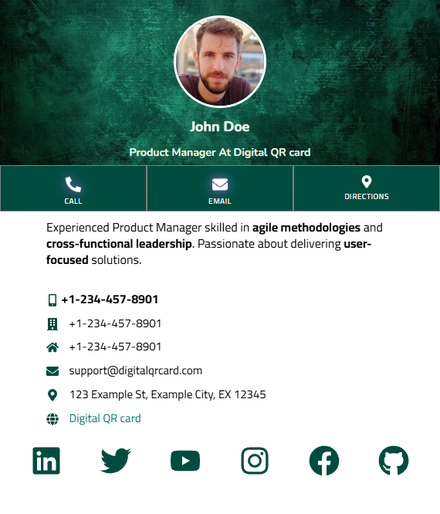
These are the fields in Digital QR Card. Three are required by the form: name, email and a cell number. The rest are your call.
- Photo and name. People remember a face. Use a clear headshot, not a group picture, and write your name the way you'd introduce yourself.
- Title. Be specific. "Commercial insurance broker" tells someone more than "Account manager".
- Organization. Your company or practice name, if you have one.
- One phone number. The form has slots for cell, work, home and fax. You don't have to fill them all. One number you answer is better than four you don't.
- Email. The one you check every day.
- A web address. A single link with a label such as "Book a call" or "See my work". Pick the one next step you'd most like a stranger to take.
- A summary. Two or three sentences on what you do and who you do it for. Skip the adjectives and say what a customer gets.
- Social and booking links. Add only accounts you actually keep up. The list includes LinkedIn, Instagram, Facebook, YouTube, TikTok, WhatsApp, GitHub, Behance, Calendly and Google Calendar. A booking link is often worth more than any social profile.
- An address, only if people come to you.
What to leave off
Treat every field you fill in as visible to anyone who opens the card. Anyone with the QR code or the link can open it, and anyone can save what they see. So the question for each field is simple: would you write this on a sign in your window?
- Your home address. If you work from home, leave the address blank. A city in the summary is enough.
- A personal number you don't want strangers calling. The form asks for a cell number, so if your personal cell isn't for business, use a number that is: a second line or a forwarding number.
- Every social account you own. A neglected profile hurts more than a missing one.
- A private link. If a client gallery or a shared document is protected only by its address, don't paste that address on a public card.
- Long bios. People read a card on a phone, standing up, often in a hurry.
- Anything that has to be exactly right and changes often. A price list on the card is a chore to keep current. Link to the page that holds it.
A saved contact is a copy
When a visitor taps Download vCard, your details go into their phone's contacts. That entry is a snapshot. If you change your number next month, the card page shows the new one, but the entry in their phone keeps the old one.
That has a practical consequence. Put the details that rarely change (name, email, a main number) into the fields people will save, and send people to a link for anything that moves. Your card page is always the current version, and it's the one your QR code opens.
Write it in the right language
Each card has its own language setting, and the card form offers 12 languages, including Arabic with right-to-left text. The setting changes the card's own button labels. It does not translate what you type. If you serve customers in more than one language, you can make a second card and write it in the other language. The Free plan allows 2 cards, which covers that case for many people.
Do a ten-second check before you print
Open the card on your phone and read it like a stranger would. Can you tell what the person does within three seconds? Is there one obvious thing to tap? Then scan the code from a printed test sheet before ordering a stack. Our post on paper business cards covers when printing makes sense at all.
If you only want a plain code for a link, the free QR code creator makes one. It encodes whatever address you type straight into the squares, so that code can never be edited. A card made in Digital QR Card works the other way: the code points at your card, and you edit the card.
Leads are a separate switch
Your card fields describe you. If you also want to collect details from the people who scan, that's the lead capture form, which is part of the paid plans. You choose what it asks for (name, email, phone, company or a message), and whether visitors can skip it. It's a different job from the card itself, so decide it separately.
The card creation guide goes further on photos, themes and wording, and the pricing page shows which plan includes lead capture. To build a card with these fields today, start free.